2026-08-14
How To Switch Distributors Without Losing Your Stream Count
Moving a release to Amuse is now easier with Release Importer. Learn how to import release details, keep your metadata matched, and switch distributors step by step.
Team Amuse
Please note that track linking is never 100% guaranteed, but the more similar the metadata and assets are, the more likely everything is to be matched correctly.
Moving your music should not feel like starting over
Does your current distributor no longer feel like the right fit? Maybe you want better support, clearer insights, stronger promo tools, or one place to manage more of your music. Whatever the reason, switching distributors can feel bigger than it needs to.
That is why we built Release Importer.
Release Importer helps you move an existing release to Amuse by pulling in the key details for you. Instead of manually rebuilding everything from scratch, you can import available metadata from your live Spotify release, review what is already filled in, add the files and details that are still needed, then submit your release for review.
The goal is simple: Less admin, fewer manual steps = more time for the music.
What is Release Importer?
Release Importer is a tool that helps artists move music that is already out on streaming services via other distributors to Amuse, one release at a time.
When you import a release, Amuse looks for available release information and pre-fills matching fields in the release builder. This can include details like your cover art, release title, track titles, ISRCs, and other metadata depending on what is available.
You will still need to upload your audio files and complete a few mandatory fields before submitting, but most of the metadata will have been filled out for you. Once everything is ready, Amuse reviews the release and sends it to stores.
Why switch your release to Amuse?
Looking for a smoother experience? Support from real people, and better access to tools that help you release, promote and understand your music and earnings?
With Amuse, you can get access to:
Worldwide digital music distribution
The fastest release delivery in the market, as quick as 24 hours (with proper content review!)
Promo tools such as Auto Saves, smart links and fan email downloads
Streaming and royalty insights
Smart royalty advances, ranging from $20 to thousands of dollars
Engaged support from actual people
Music that stays live even if you downgrade
Free YouTube Content ID and Collaborator Splits with our Artist Plus and Professional plans
The ability to unlock more premium support as you grow through Artist and Label Services
Release Importer makes the move easier by taking care of much of the repetitive setup work.
How Release Importer works
Here is the step-by-step process.
Step 1: Sign in or create your Amuse account
Start by signing in to your Amuse account in a web browser (Release Importer is coming to Android soon, and eventually we'll also roll it out to iOS). New to Amuse? Create an account first.
You can test the Release Builder and Release Importer even without an active subscription, just create an account and an artist profile. To send your release to DSPs, you will need an active Amuse subscription.
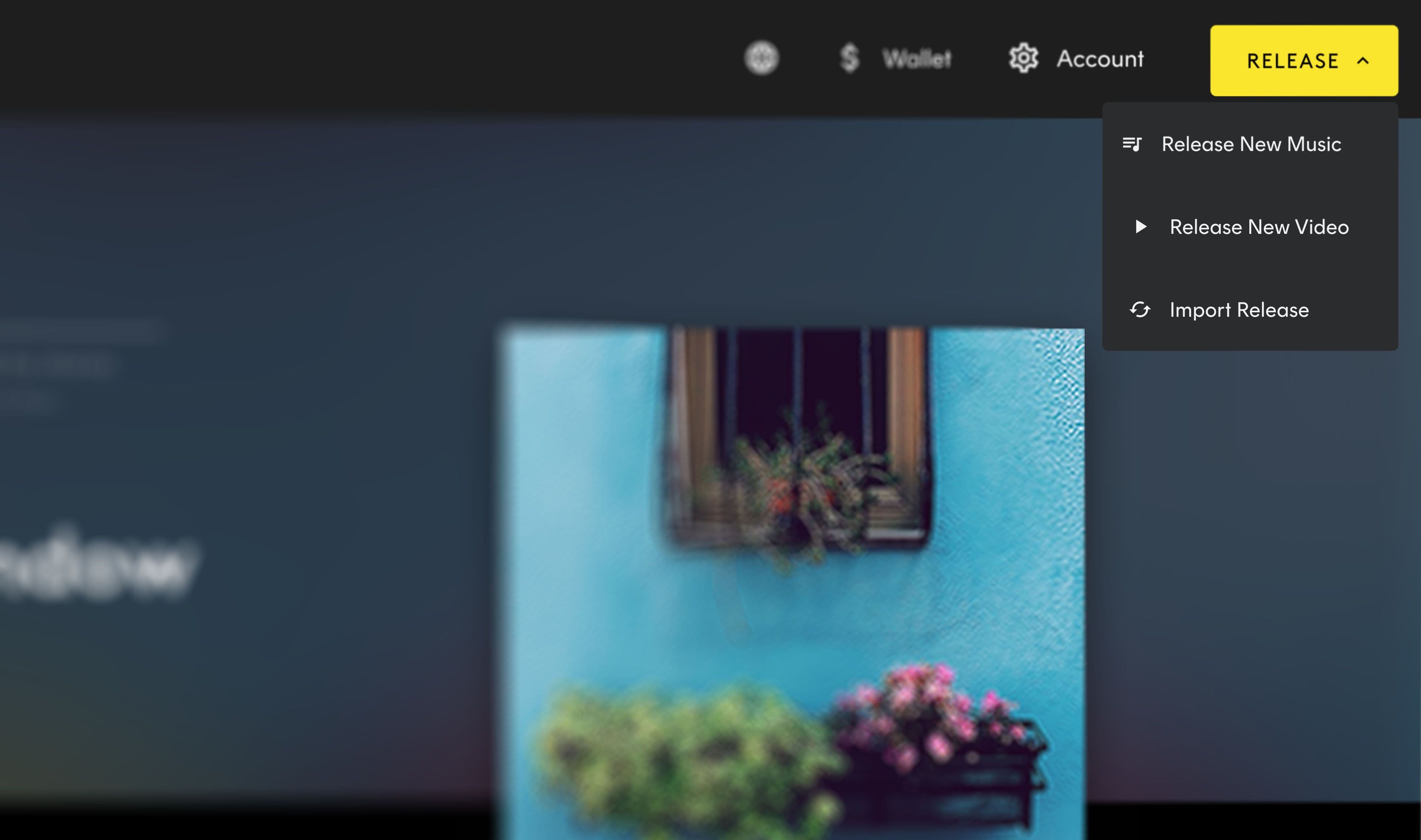
Step 2: Go to Release and choose Import Release
Once you are in your account, click on Release and select Import Release.
To use Release Importer, you need an artist profile that has music live on Spotify.
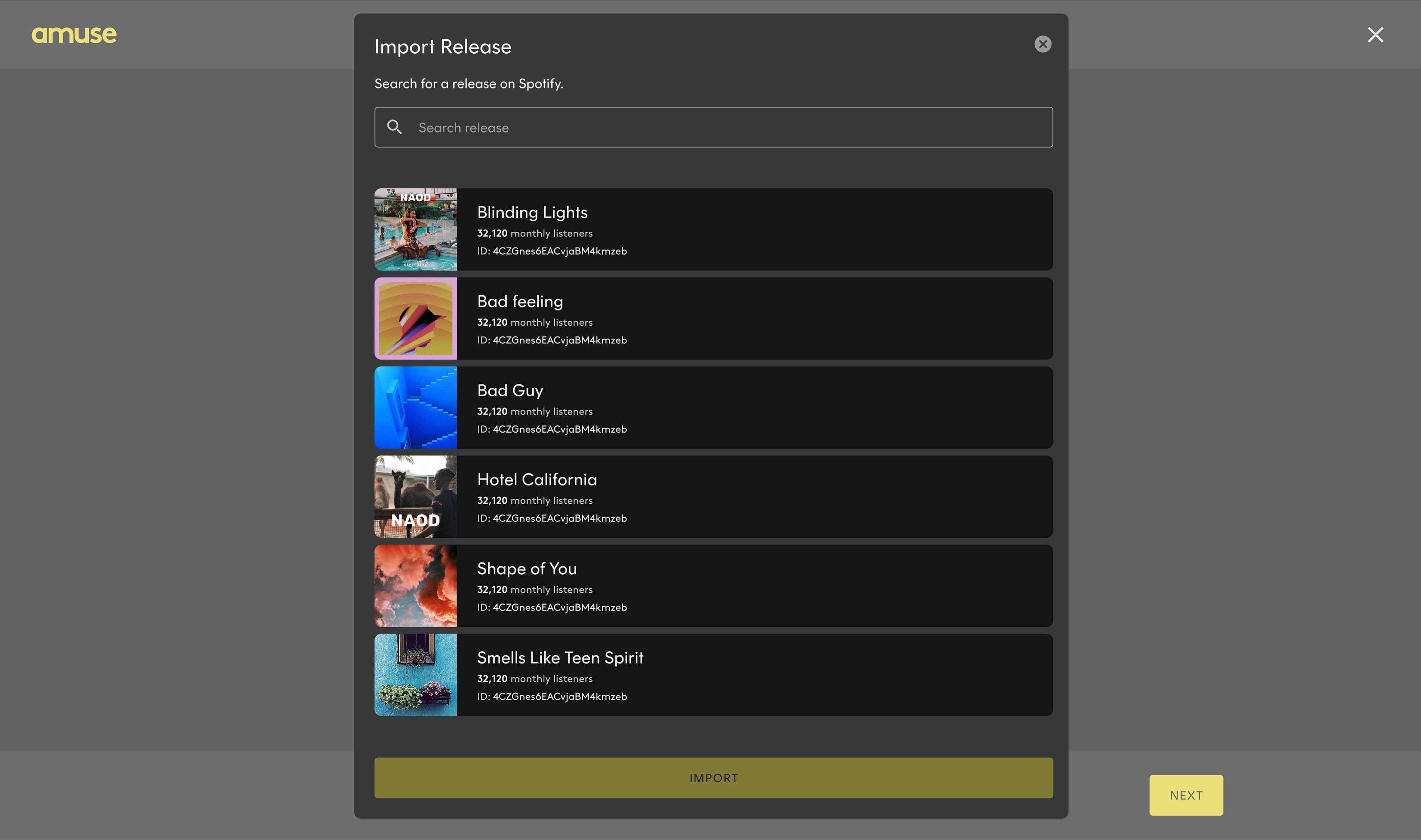
Step 3: Search for the release you want to move
Search for the release you want to import. The release needs to be live on Spotify for the importer to find it.
Found the right one? Select it and move forward.
Step 4: Paste the Spotify album link if needed
No results showing up? You can paste the Spotify album link directly.
Amuse will validate the URL to make sure it is a Spotify album and that the release belongs to the artist profile you have set up on Amuse.
Step 5: Let Release Importer do the heavy lifting
This is where the tool saves you time.
Release Importer pulls in available data from your existing release and pre-fills matching fields in the release builder. That can include your release title, tracks, ISRCs and other available metadata.
You still stay in control. You can review the imported information and make sure everything matches your current release.
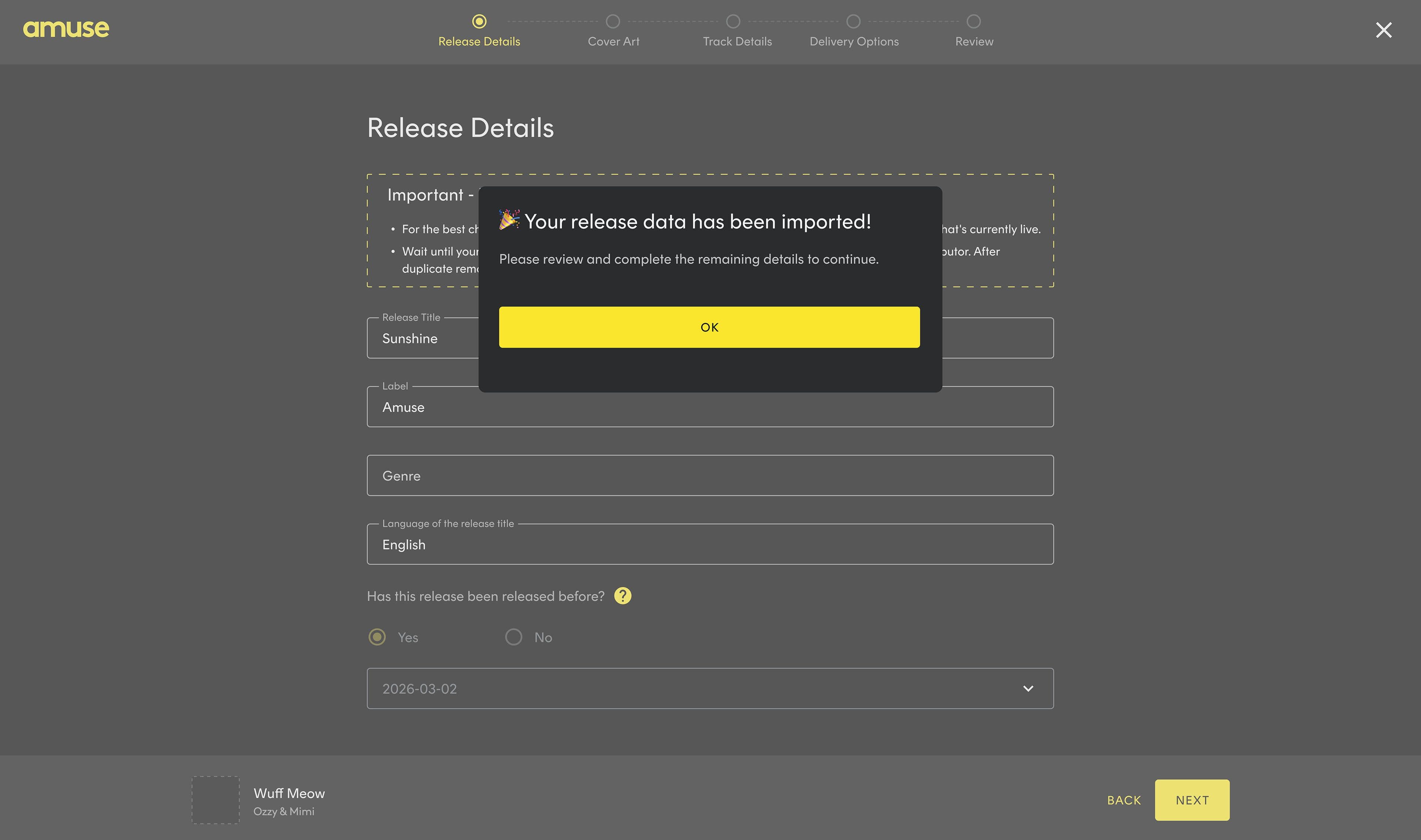
Step 6: Upload your audio files and complete any missing fields
Release Importer handles much of the setup, but there are still a few things you need to add manually.
You will need to upload your audio files and complete any mandatory fields that could not be imported. Depending on your plan and release details, some fields, such as custom label information, may be handled differently.
The key thing to remember: keep your details consistent. For the best chance of retaining your stream count and playlist placements, your titles, artist names, track order and ISRCs should match exactly what is currently live.
Step 7: Submit your release for review
Once everything is filled in, submit your release.
Amuse will review it before sending it to stores. We will let you know when the release has been approved and delivered.
Step 8: Wait until your Amuse release is live before taking down the old one
This part is important!
Do not remove your release from your previous distributor too early. Wait until you can see that your release is live through Amuse first.
For a short time, your release will appear twice on Spotify. That duplicate listing is part of the track-linking process. Once you see the release live through Amuse, that is the sign that you can start the takedown process with your previous distributor.
Your previous distributor still controls their own takedown process, so you will need to request the takedown with them directly.
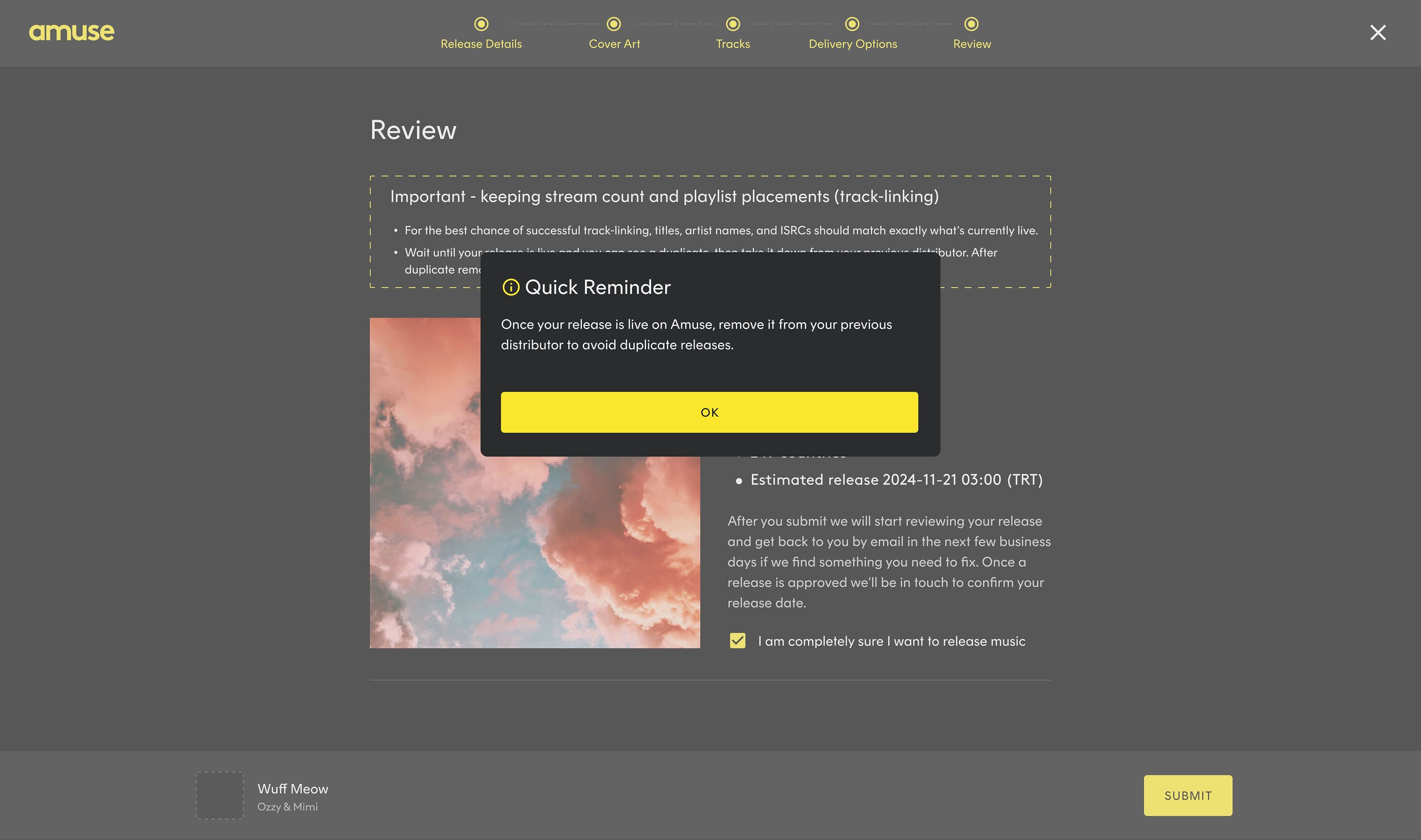
How to give yourself the best chance of keeping stream counts
To help Spotify and other platforms connect the new delivery to your existing release, your metadata needs to match as closely as possible.
Before submitting, double-check:
Release title
Track titles
Track order
Artist name and featured artist names
Songwriter- and contributor information
ISRCs and the original release date
Audio files
Version information, if applicable
The closer the match, the better the chance of retaining your existing stream count and playlist placements.
A smoother way to move your music
Switching distributors used to mean a lot of manual work. Release Importer makes it easier by pulling in key release details for you, guiding you through what is left, and helping you move one release at a time with less stress.
Bring your release to Amuse, review the details, upload your audio, submit for review, and let the product handle the heavy lifting where it can.
CTA: Ready to move a release to Amuse? Sign in or create your account and try Release Importer today.
FAQ
Can I move my whole catalog with Release Importer?
Release Importer moves one release at a time. It is designed to help you import an existing release into Amuse. Of course, using the Release Importer does help speed things up due to the amount of metadata that gets filled in automatically.
Do I need an Amuse subscription to use Release Importer?
You can test the Release Builder and Release Importer without an active subscription. To send your release to DSPs, you need an active Amuse subscription.
Does the release need to be live on Spotify?
Yes. Release Importer works with releases that are currently live on Spotify. You can search for your release or paste the Spotify album link directly.
What information does Release Importer import?
Release Importer pulls in available release data and pre-fills matching fields. This can include the cover art, release title, track information, ISRCs, and other available metadata.
Do I still need to upload my audio files?
Yes. You need to upload your audio files manually and complete any mandatory fields that could not be imported.
What happens to my stream count when I switch distributors?
For the best chance of retaining your stream count, your release details need to match what is currently live. Make sure titles, track order, artist names, songwriters and ISRCs match exactly before submitting.
What happens to my playlist placements?
Matching metadata gives your release the best chance of staying connected correctly across platforms. Playlist placement behavior can vary, so the safest approach is to make sure all key release details match exactly and wait until your Amuse version is live before taking down the old one. You will first see the stream count match up, then after you’ve removed the release from your previous distributor, the playlist info will start syncing as well. Give it some time!
When should I remove the release from my old distributor?
Wait until your release is live through Amuse before requesting a takedown from your previous distributor. Your release will temporarily appear twice on Spotify. That duplicate listing is part of the track-linking process.
Does Amuse take down the release from my old distributor for me?
No. After your release has been reviewed, approved and is live through Amuse, you need to request the takedown from your previous distributor yourself.
Are compilation releases supported?
No. Compilation releases are not supported at this time.
Are multi-disc releases supported?
Yes and no. You will be able to import the release, but it won’t be divided into separate discs automatically. Our support team will be able to help you with this manually as long as you reach out as soon as the release has been submitted, before it has been approved and delivered to stores.
Can I import more than one release?
Yes, but you need to import one release at a time.
What should I check before submitting my imported release?
Check that your cover art, release title, track titles, track order, artist names, songwriters, ISRCs, and audio files match the version that is currently live. This gives platforms the best information to link the release correctly.